
How to draw a diamond with basic graphics commands in C#
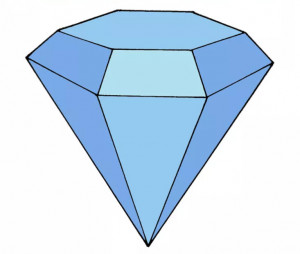
Diamond drawing is the process of creating a diamond-shaped figure using graphics commands, vector paths, line segments, and mathematical calculations. A diamond is essentially a rotated square, making it one of the simplest yet most frequently used geometric shapes in software development.
Diamond shapes are commonly used in flowcharts, decision trees, diagrams, game interfaces, data visualizations, and custom user interface components.
- Create flowchart decision nodes.
- Build custom diagram editors.
- Generate scalable vector icons.
- Render game elements and markers.
- Create geometric UI components.
Why Do We Need Diamond Drawing?
Many applications require diamond shapes to represent decisions, states, markers, or custom visual elements. Drawing them programmatically allows developers to dynamically control size, color, border thickness, and positioning.
Unlike image assets, vector-based diamonds remain sharp regardless of screen resolution and scaling factors.
- Resolution-independent rendering.
- Easy customization and styling.
- Reduced dependency on image assets.
- Perfect for diagramming applications.
- Better support for high-DPI displays.
Are There Libraries to Draw a Diamond in C#?
Most graphics libraries can render diamond shapes because they support polygons and path-based drawing. A diamond only requires four vertices, making implementation straightforward.
| Library | Platform | Diamond Drawing Support |
|---|---|---|
| System.Drawing | WinForms | Polygon and GraphicsPath support |
| SkiaSharp | Cross Platform | Path-based drawing |
| WPF | Windows | Polygon and Geometry support |
| Avalonia | Desktop | Polygon rendering support |
| ImageSharp.Drawing | Cross Platform | Polygon drawing support |
For most C# applications, System.Drawing provides everything needed to render diamonds using basic polygon and path commands.
How Can I Draw a Diamond with a Graphics Library?
The simplest approach is creating four vertices and rendering them as a polygon. This method is easy to understand and highly efficient.
PointF[] diamond =
{
new PointF(100, 20),
new PointF(180, 100),
new PointF(100, 180),
new PointF(20, 100)
};
graphics.FillPolygon(Brushes.DeepSkyBlue, diamond);
graphics.DrawPolygon(Pens.Black, diamond);
This implementation creates a classic diamond centered around the specified coordinates.
How Can I Draw a Diamond with Basic Graphics Commands (Line, Path, and More)?
A diamond can also be created directly using line and path commands. This approach gives complete control over how the shape is constructed.
using System.Drawing.Drawing2D;
GraphicsPath path = new GraphicsPath();
path.StartFigure();
path.AddLine(100, 20, 180, 100);
path.AddLine(180, 100, 100, 180);
path.AddLine(100, 180, 20, 100);
path.AddLine(20, 100, 100, 20);
path.CloseFigure();
graphics.FillPath(Brushes.CornflowerBlue, path);
graphics.DrawPath(Pens.DarkBlue, path);
Because a diamond consists entirely of straight edges, line-based drawing is often the most efficient solution.
How to Calculate Diamond Vertices Dynamically?
In many applications, the diamond size is not known in advance. Instead of hardcoding points, you can generate vertices from a center position and radius values.
float centerX = 150;
float centerY = 150;
float width = 100;
float height = 140;
PointF[] diamond =
{
new PointF(centerX, centerY - height / 2),
new PointF(centerX + width / 2, centerY),
new PointF(centerX, centerY + height / 2),
new PointF(centerX - width / 2, centerY)
};
This technique makes it easy to create diamonds of any size while keeping them perfectly centered.
An Alternative Diamond Implementation: Rotated Square
A diamond can also be viewed as a square rotated by 45 degrees. This approach is useful when working with transformation matrices or animation systems.
graphics.TranslateTransform(150, 150);
graphics.RotateTransform(45);
graphics.FillRectangle(Brushes.MediumPurple, -50, -50, 100, 100);
graphics.ResetTransform();
The rendered result is visually identical to a traditional diamond, but the implementation uses transformation operations instead of manually defining vertices.
An Alternative Diamond Implementation: Rounded Corner Diamond
Modern applications often use rounded corners to create a softer appearance. A rounded diamond can be generated using arcs and path segments.
GraphicsPath path = new GraphicsPath();
// Example structure for a rounded diamond
path.AddArc(90, 15, 20, 20, 225, 90);
path.AddLine(107, 22, 173, 88);
path.AddArc(165, 80, 20, 20, 315, 90);
path.AddLine(178, 97, 112, 163);
path.CloseFigure();
graphics.FillPath(Brushes.SkyBlue, path);
Rounded diamonds are frequently used in modern dashboards, mobile applications, and custom icon systems.
How to Use This Method Correctly?
Although drawing a diamond is relatively simple, several best practices can improve rendering quality and maintainability.
- Calculate vertices relative to a center point.
- Keep width and height proportional when necessary.
- Use anti-aliasing for smoother edges.
- Reuse GraphicsPath instances where possible.
- Dispose graphics resources correctly.
- Consider transformations for animated shapes.
- Test rendering at different DPI scales.
For smoother rendering quality, enable anti-aliasing before drawing.
graphics.SmoothingMode = SmoothingMode.AntiAlias;
Diamond Drawing Performance Considerations
Diamonds are among the cheapest geometric shapes to render because they contain only four vertices. However, applications rendering thousands of shapes can still benefit from optimization techniques.
| Recommendation | Benefit |
|---|---|
| Reuse point arrays | Reduced allocations |
| Cache GraphicsPath objects | Faster rendering |
| Enable double buffering | Reduced flickering |
| Avoid unnecessary transformations | Better performance |
Common Diamond Drawing Use Cases
Diamond shapes appear in many types of applications and software systems.
- Flowchart decision blocks.
- Business process modeling tools.
- Game map markers.
- Custom chart annotations.
- Status indicators and badges.
- Vector icon libraries.
Conclusion
Drawing a diamond in C# can be accomplished using polygons, GraphicsPath operations, line commands, or transformation-based techniques. Because the shape is geometrically simple, implementation is straightforward in virtually every graphics framework.
For most applications, a four-point polygon provides the best combination of simplicity, performance, scalability, and maintainability.